GeekTech
Sunday, April 12, 2009
Screenshots: "What in the World?"
Sometimes when you are using your computer, a marvelous piece of software will slip up and either not make any sense or just be plain wrong. Here is an extensive list of screenshots I've personally collected of these instances when Windows and other applications have reminded me that the machine is only as smart as its programmer.
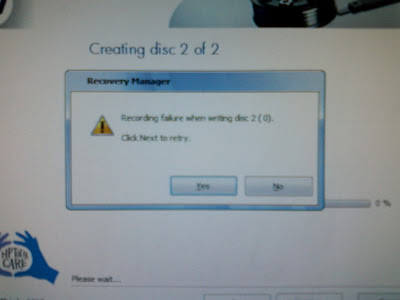

It's a little blury but the window says, "Recording failure when writing disc 2/(0)
Click Next to retry." "Yes/No"
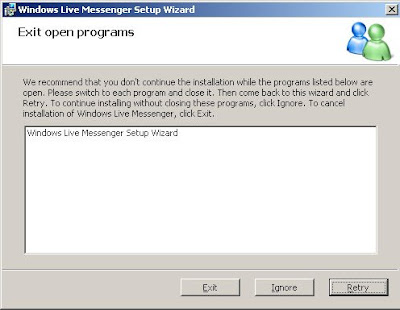 I hate those programs that make you shut down everything to continue the installation. But this installer is so greedy, it wants itself to be shutdown to continue.
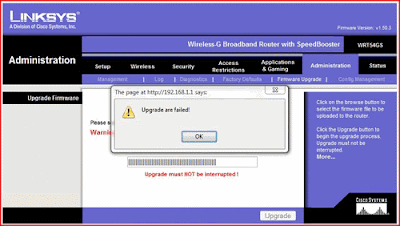 When upgrading my firmware on my router, I was alerted that, "Upgrade are failed"
Obviously Linksys had hired some foreign programmers.
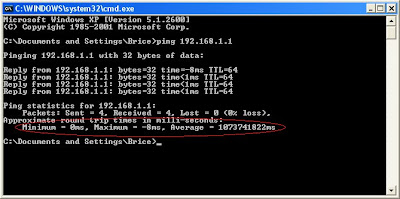 This one speaks for itself. I'd say either my network is freaking fast to get a negative ping time, or the average time of about 13 days for a response just suggests maybe the network is down.
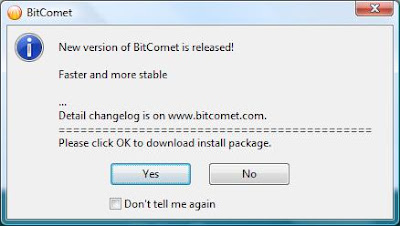 Thousands of people use BitComet but their versions are all outdated because no one can find the "OK" button.
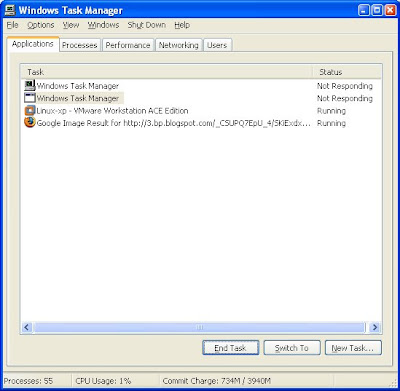 Here my task manager listed itself as being Non-responsive. So what do you do when CTRL + ALT + DEL doesn't work?
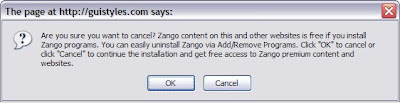 I don't have a clue what Zango is. I completely forget what I was even doing when I took this screenshot. However, something tells me they totally got confused when thinking about the definitions of OK and Cancel
 When I discovered Ceedo for my Lexar jump drive, I was determined to install my own custom application on it. I suppose it is issuous if you cannot install InstallAnything.
 This one is one of my favorites. Seriously. Go to google and begin typing the phrase, "I am extremely" and this is the result you'll get. This is not photoshopped.
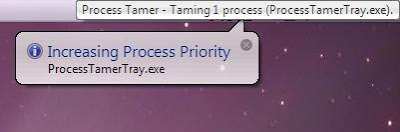 I'm pretty sure the point of an resource controller is not to waste processing power taming itself.
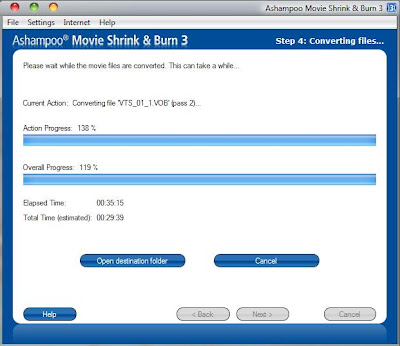 After realizing this program was putting in more than 100% or effort, I was a little leary on seeing what it did to the converted video. I couldn't have made this one up. This really did happen. I especially like how the action progress was far past the total progress.
 And to the idiots who feel bots are really getting smarter - all I can say is "WHAT IN THE WORLD?" I thought I saw this somewhere on sourceforge but I can't remember exactly where. I hate captchas. Apparently, the cat sits and the dog stands. I can't tell either. I was so mad about this I actually emailed the company complaining that their captch was literally impossible to read.
Click Next to retry." "Yes/No"
 I hate those programs that make you shut down everything to continue the installation. But this installer is so greedy, it wants itself to be shutdown to continue.
 When upgrading my firmware on my router, I was alerted that, "Upgrade are failed"
Obviously Linksys had hired some foreign programmers.
 This one speaks for itself. I'd say either my network is freaking fast to get a negative ping time, or the average time of about 13 days for a response just suggests maybe the network is down.
 Thousands of people use BitComet but their versions are all outdated because no one can find the "OK" button.
 Here my task manager listed itself as being Non-responsive. So what do you do when CTRL + ALT + DEL doesn't work?
 I don't have a clue what Zango is. I completely forget what I was even doing when I took this screenshot. However, something tells me they totally got confused when thinking about the definitions of OK and Cancel
 When I discovered Ceedo for my Lexar jump drive, I was determined to install my own custom application on it. I suppose it is issuous if you cannot install InstallAnything.
 This one is one of my favorites. Seriously. Go to google and begin typing the phrase, "I am extremely" and this is the result you'll get. This is not photoshopped.
 I'm pretty sure the point of an resource controller is not to waste processing power taming itself.
 After realizing this program was putting in more than 100% or effort, I was a little leary on seeing what it did to the converted video. I couldn't have made this one up. This really did happen. I especially like how the action progress was far past the total progress.
 And to the idiots who feel bots are really getting smarter - all I can say is "WHAT IN THE WORLD?" I thought I saw this somewhere on sourceforge but I can't remember exactly where. I hate captchas. Apparently, the cat sits and the dog stands. I can't tell either. I was so mad about this I actually emailed the company complaining that their captch was literally impossible to read.
Thos are all the funny screenshots that I have collected so far. Thos are all real and they are ones I have personally experience and saved. None of them have been altered or photoshopped.
Labels: FYI, Laugh of the Day, OS, Screenshots/Screencasts, secrets, Software


Monday, April 6, 2009
RUN Prompt: Launch any application FAST!
If you are like me and are becoming more and more obsessed by doing every single task on your computer with your keyboard instead of your mouse, then I just thought up and tested the best thing for you.
Ever noticed those little underlines under certain letters in menus? If you didn't know, those are the keyboard commands to navigate an entire program with out using the mouse. In each program, no two menu options use the same letter, or at least they try not to. In case it does, the highlighter will flip back and forth between the options as you press that letter. If you've never experienced this awesome thing before, go ahead and hit ALT + F, or ALT and then F to open your browser's File menu. Don't hit X or else that will close down the program (that's usually standard).
Ok, enough of the basics. How do you get flying fast with launching applications. Well you know that in command prompt it's natural directory defaults to the system32 folder where some common programs are stored - like mspaint, sol, and notepad. When you go to Start --> Run, and you simply type "notepad" (even without the ".exe") it launches that program.
Well I prefer to quickly launch something via the keyboard rather than picking up my stylus (since I don't have a mouse) clicking to activate it's control, finding the mouse on one of my dual monitors, dragging it over the the secondary monitor to click start, etc, etc, etc, etc. So it is much faster to just type something real fast and go.
In windows, you can launch ANYTHING from the RUN prompt. But to formally do it, you have to type the complete path with colons, backslashes, and the .exe extension. So why can't you do it just like - "notepad" and have it launch? Well you can!
Go to the folder - C:\windows\system32 - and create a new text file from the file menu
Or if you're like me, press the following while doing the hokey pokey...
Windows Key + E;
TAB;
L; (if you have one hard drive)
L; (only if you have two hard drives)
Enter;
W;
Enter;
S (8 times);
Enter;
ALT + F;
ALT + W;
ALT + T;
...it really is faster to do it with key strokes.
Anywho, rename that new text file to the name of the program that you want to launch and end it with a [dot]bat extension. My example here would be Firefox.
firefox.bat
It will most likely warn you about changing the file extension and becoming unusable. It's ok, just say yes. If you want, shorten the name of that file to "ff.bat" so you can reduce the amount of keys you have to type to launch your program. It's your file, you do whatever you want.
Now right click that file (or hit the context menu key on the keyboard and then hit "E") which will open a blank notepad.
HERE'S THE IMPORTANT PART!!!!
Inside of notepad typ the following:
start "" [path]
That is "s-t-a-r-t SPACE doublequote-doublequote SPACE [path]
Now [path] should be replaced with the complete path to wherever your program is installed including the drive letter and file extension AND the whole path must be in double quotes! Obviously, the batch file should not contain the brackets.
Example: (still for firefox)
start "" "C:\program files\mozilla firefox 3 beta 2\firefox.exe"
(s-t-a-r-t SPACE doublequote-doublequote SPACE doublequote-c-COLON...........)
Save the file once you've added this one line and then close notepad. Type the following (in no program)...
Windows Key (the flag) + R (hit them at the same time);
type "firefox";
hit Enter;
Voila! A new instance of Firefox should open. I even have these set to Thunderbird, Audacity, Photoshop, Premiere, and VMware. It works!
Ever noticed those little underlines under certain letters in menus? If you didn't know, those are the keyboard commands to navigate an entire program with out using the mouse. In each program, no two menu options use the same letter, or at least they try not to. In case it does, the highlighter will flip back and forth between the options as you press that letter. If you've never experienced this awesome thing before, go ahead and hit ALT + F, or ALT and then F to open your browser's File menu. Don't hit X or else that will close down the program (that's usually standard).
Ok, enough of the basics. How do you get flying fast with launching applications. Well you know that in command prompt it's natural directory defaults to the system32 folder where some common programs are stored - like mspaint, sol, and notepad. When you go to Start --> Run, and you simply type "notepad" (even without the ".exe") it launches that program.
Well I prefer to quickly launch something via the keyboard rather than picking up my stylus (since I don't have a mouse) clicking to activate it's control, finding the mouse on one of my dual monitors, dragging it over the the secondary monitor to click start, etc, etc, etc, etc. So it is much faster to just type something real fast and go.
In windows, you can launch ANYTHING from the RUN prompt. But to formally do it, you have to type the complete path with colons, backslashes, and the .exe extension. So why can't you do it just like - "notepad" and have it launch? Well you can!
Go to the folder - C:\windows\system32 - and create a new text file from the file menu
Or if you're like me, press the following while doing the hokey pokey...
Windows Key + E;
TAB;
L; (if you have one hard drive)
L; (only if you have two hard drives)
Enter;
W;
Enter;
S (8 times);
Enter;
ALT + F;
ALT + W;
ALT + T;
...it really is faster to do it with key strokes.
Anywho, rename that new text file to the name of the program that you want to launch and end it with a [dot]bat extension. My example here would be Firefox.
firefox.bat
It will most likely warn you about changing the file extension and becoming unusable. It's ok, just say yes. If you want, shorten the name of that file to "ff.bat" so you can reduce the amount of keys you have to type to launch your program. It's your file, you do whatever you want.
Now right click that file (or hit the context menu key on the keyboard and then hit "E") which will open a blank notepad.
HERE'S THE IMPORTANT PART!!!!
Inside of notepad typ the following:
start "" [path]
That is "s-t-a-r-t SPACE doublequote-doublequote SPACE [path]
Now [path] should be replaced with the complete path to wherever your program is installed including the drive letter and file extension AND the whole path must be in double quotes! Obviously, the batch file should not contain the brackets.
Example: (still for firefox)
start "" "C:\program files\mozilla firefox 3 beta 2\firefox.exe"
(s-t-a-r-t SPACE doublequote-doublequote SPACE doublequote-c-COLON...........)
Save the file once you've added this one line and then close notepad. Type the following (in no program)...
Windows Key (the flag) + R (hit them at the same time);
type "firefox";
hit Enter;
Voila! A new instance of Firefox should open. I even have these set to Thunderbird, Audacity, Photoshop, Premiere, and VMware. It works!
Labels: FYI, Modifications, OS, Programming, secrets, Software, tips
Saturday, July 19, 2008
Vista: I finally cracked it to OS X
Not to copy off of Mr. Mssuxandotherstuff here but I really wanted to show you all some cool things that I just discovered with theming. So here's my current desktop's screencap.
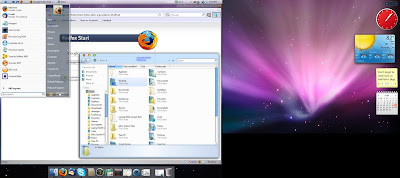
Now we've all seen themes before and just having Mac wallpaper isn't that impressive, but look closely at the title bar. Yes, that's it... lean in and look!
Wait... what's that?
YES! The buttons are really on the left side. IN WINDOWS!!! I found this awesome stand alone, non-install program called leftsider that is completely free. It only works in windows vista though. I've heard that it can work in xp but will only affect explorer windows. In vista, though, everything is switched. Combine it with a theme, some wallpaper, and RKLauncher and you have a suitable mac on pc.

Now we've all seen themes before and just having Mac wallpaper isn't that impressive, but look closely at the title bar. Yes, that's it... lean in and look!
Wait... what's that?
YES! The buttons are really on the left side. IN WINDOWS!!! I found this awesome stand alone, non-install program called leftsider that is completely free. It only works in windows vista though. I've heard that it can work in xp but will only affect explorer windows. In vista, though, everything is switched. Combine it with a theme, some wallpaper, and RKLauncher and you have a suitable mac on pc.
Labels: A Geek's Dream, Modifications, OS, secrets, Software
MS-DOS: Getting back to the root of it all
Lately I have taken a deep interest in command prompting and especially batch files. Since we use batch files at work to run scripts for installing files and installing network printers and other miscellaneous tasks, I wanted to learn more about the cool things that are possible with building batch files. After reading through an online ebook I found that you can script batch files a way that is even more fun than doing it in notepad. To get here, start a command prompt. I'll make the following instructions in command prompt style: ('REM' means that it is just a remark. Do not actually type these.)
REM (In command prompt)
edit test.bat
REM This will actually create a batch file in your current folder (wherever command prompt is pointing)
REM Guess what? You are now in a true MS-DOS window. This goes back before command prompt. WOW.
@echo off
echo Hello. This is a test batch file.
pause
echo This batch file will now terminate.
pause
Okay, did you follow all of that? Now use your mouse to click file, and then save. And then go File > Exit. This will bring you back to command prompt. Now type 'test'. This should run your batch file. There are alot of advance commands that you can do like deleting files, moving files, and even some light programming like using the choice command.
The best thing you can do to find out more about commands is to actually use command prompt. If you type a command followed by /? it will display all the parameters and usages of that command and will usually give you an example. Seriously. Go try it out. You're not going to hurt anything.
REM (In command prompt)
edit test.bat
REM This will actually create a batch file in your current folder (wherever command prompt is pointing)
REM Guess what? You are now in a true MS-DOS window. This goes back before command prompt. WOW.
@echo off
echo Hello. This is a test batch file.
pause
echo This batch file will now terminate.
pause
Okay, did you follow all of that? Now use your mouse to click file, and then save. And then go File > Exit. This will bring you back to command prompt. Now type 'test'. This should run your batch file. There are alot of advance commands that you can do like deleting files, moving files, and even some light programming like using the choice command.
The best thing you can do to find out more about commands is to actually use command prompt. If you type a command followed by /? it will display all the parameters and usages of that command and will usually give you an example. Seriously. Go try it out. You're not going to hurt anything.
Labels: Programming, Software, tips
Monday, June 9, 2008
Shell Commands
I was reading this article about helpful commands in Vista, however, these commands also work with XP - well I know a couple do because I just tired them. I find these really helpful. Just type this in your "Run Prompt" and it will perform its action. Really cool.
Most useful Shell commands
- shell:ChangeRemoveProgramsFolder - opens the Programs and Features (Add/Remove Programs) window.
- shell:Sendto - opens the SendTo folder so that you can easily add more locations to the Send To list.
- shell:Common Administrative Tools - opens the Administrative Tools menu as a folder
- shell:Desktop - opens the Desktop as a folder.
- shell:Downloads - opens your Downloads folder. (Vista Only)
- shell:Quick Launch - opens the Quick Launch folder. (Vista Only)
- shell:Searches - opens the Search folder showing all your saved searches. (Vista Only)
The other useful Shell commands
- shell:AppUpdatesFolder - opens the Installed Windows Updates location in Program and Files. (Vista Only)
- shell:Cache - opens Internet Explorer’s temporary Internet files folder.
- shell:CD Burning - opens the folder where Windows Vista temporarily stores files to be burned to a CD.
- shell:Common Desktop - opens the Public/Shared User’s Desktop folder.
- shell:Common Documents - opens the Public/Shared User’s Documents folder.
- shell:Common Programs - opens the Start menu shortcuts folder.
- shell:Common Start Menu - opens the Start Menu as a folder.
- shell:Common Startup - opens the Startup folder.
- shell:Common Templates - opens the Templates folder.
- shell:CommonDownloads - opens the Public User’s Downloads folder.
- shell:CommonMusic - opens the Public User’s Music folder.
- shell:CommonPictures - opens the Public User’s Pictures folder.
- shell:CommonVideo - opens the Public User’s Video folder.
- ***you can also open up separate folders of the like above by removing the term "Common"
- shell:ConflictFolder - opens the Sync Center Conflicts folder. (Vista Only)
- shell:ConnectionsFolder - opens the Network Connections folder. Very handy to know if you do a lot of networking
- shell:Contacts - opens your Contacts folder. (Vista Only)
- shell:ControlPanelFolder - opens the Control Panel.
- shell:Cookies - opens the cookies folder
- shell:Favorites - opens your Favorites folder.
- shell:Fonts - opens Vista’s/XP's Fonts folder.
- shell:Gadgets - opens your Windows Sidebar Gadgets folder. (Vista Only)
- shell:History - opens the Internet Explorer history folder.
- shell:InternetFolder - opens Internet Explorer to the "Welcome back"/"Change Your Settings" page - not the home page
- shell:Links - opens your Links folder location. (Vista Only)
- shell:MyMusic - opens your Music folder. (Vista Only)
- shell:MyPictures - opens your Pictures folder. (VistaOnly)
- shell:MyVideo - opens your Video folder.(Vista Only)
- shell:MyComputerFolder - opens Computer window.(Vista Only)
- shell:NetHood - opens Network Shortcuts folder or all the shared folders found on your network.
- shell:NetworkPlacesFolder - opens the Network Places location. (Vista Only)
- shell:Original Images - opens Windows Photo Gallery Original Images folder. (Vista Only)
- shell:Personal - opens your Documents folder. Works with XP
- shell:PhotoAlbums - opens your Slide Show folder. (Vista Only)
- shell:Playlists - opens your Playlists folder. (Vista Only)
- shell:PrintersFolder - opens Printers in the Control Panel.
- shell:Profile - opens your main folder, you know that place that stores all that crap like "my documents", "Favorites","start menu", "desktop","local settings".
- shell:ProgramFiles - opens the Program Files folder. Hallelujah this one works with XP and is now my new best friend.
- shell:Public - opens the Public User folder.(Vista Only)
- shell:Recent - opens the Recent Items(Recent Documents for XP) folder.
- shell:RecycleBinFolder - opens the Recycle Bin folder.
- shell:Start Menu - opens the Start Menu folder.
- shell:Startup - opens the Startup folder
- shell:System - opens the System32 folder location.
- shell:Templates - opens the Templates folder location.
- shell:UserProfiles - opens the Users folder. (Vista Only)
- shell:UsersFilesFolder - opens your main folder. (Vista Only)
- shell:Windows - opens the Windows folder. Works with XP
Labels: Articles, FYI, OS, Programming, secrets, Software, tips
Saturday, February 2, 2008
Linux
Time to explore a new OS. This post is for Sandman and his exploration of alternatives to Microshaft's Winblows.
I know a few people who use Fedora. I have never personally experienced it before but I know that there are people who are happy with it. I have personally used Ubuntu for awhile and I liked it. The only reason why I don't use it anymore is that it didn't have support for my audio card (which was a professional studio card) and I couldn't figure out how to install packages. I'm not to that level of programming and understanding Konsol.
My top pick of a Linux distro would definitely have to be Dream Linux. This is as close to an open source Macintosh as you can get. It even has the dock with the cool effects and all that jazz. I liked it from the moment I booted from the live CD. I had issues installing it because I was doing it on ancient machines and there was hardware issues but I definitely recommend it to anyone who sort of like Mac.
In Sandman's particular situation with the fight for XP, I recommend PCLinuxOS. PCLinuxOS is Linux that is designed to look and feel just like XP, but much much less demanding with the resources. Linux Kernel + XP GUI = Your best friend.
You also said that you might go with Kubuntu. I'm not sure if you know this or not but there are three versions of "Ubuntu". There is standard "Ubuntu", there is the "Educational" version called "Edubuntu" and "Kubuntu" which is the KDE version of ubuntu instead of using GNOME. This just gives it a different GUI. From the screen shots, I recommened standard Ubuntu for a more mac feel. If you want more of a windows feel, then kubuntu is the one.
Recently, there have been two more distros added to the ubuntu project. The first is "Gobuntu" which is an operating system that has "no firmware, drivers, applications, or content included in [it] that does not include the full source or whose license does not provide the right to use, study, modify, and redistribute the body of work." So if you are an intense programmer, this is definitely the one for you.
The second is Xubuntu - an official derivative of Ubuntu using the Xfce desktop environment. It is intended for users with less-powerful computers, or those that require a highly efficient desktop environment on faster systems. Xubuntu features primarily GNOME applications. This distro is basically like a super 'lite' edition and doesn't give you all the cool stuff that you want. I don't recommend this.
I hope this gives you a more broad spectrum and helps shine some more light. These distros are only my favorites but I know that there are hundreds of them. Choosing the right one is like becoming engaged to the girl of your dreams -- it takes a lot of time and a wise decision.
I know a few people who use Fedora. I have never personally experienced it before but I know that there are people who are happy with it. I have personally used Ubuntu for awhile and I liked it. The only reason why I don't use it anymore is that it didn't have support for my audio card (which was a professional studio card) and I couldn't figure out how to install packages. I'm not to that level of programming and understanding Konsol.
My top pick of a Linux distro would definitely have to be Dream Linux. This is as close to an open source Macintosh as you can get. It even has the dock with the cool effects and all that jazz. I liked it from the moment I booted from the live CD. I had issues installing it because I was doing it on ancient machines and there was hardware issues but I definitely recommend it to anyone who sort of like Mac.
In Sandman's particular situation with the fight for XP, I recommend PCLinuxOS. PCLinuxOS is Linux that is designed to look and feel just like XP, but much much less demanding with the resources. Linux Kernel + XP GUI = Your best friend.
You also said that you might go with Kubuntu. I'm not sure if you know this or not but there are three versions of "Ubuntu". There is standard "Ubuntu", there is the "Educational" version called "Edubuntu" and "Kubuntu" which is the KDE version of ubuntu instead of using GNOME. This just gives it a different GUI. From the screen shots, I recommened standard Ubuntu for a more mac feel. If you want more of a windows feel, then kubuntu is the one.
Recently, there have been two more distros added to the ubuntu project. The first is "Gobuntu" which is an operating system that has "no firmware, drivers, applications, or content included in [it] that does not include the full source or whose license does not provide the right to use, study, modify, and redistribute the body of work." So if you are an intense programmer, this is definitely the one for you.
The second is Xubuntu - an official derivative of Ubuntu using the Xfce desktop environment. It is intended for users with less-powerful computers, or those that require a highly efficient desktop environment on faster systems. Xubuntu features primarily GNOME applications. This distro is basically like a super 'lite' edition and doesn't give you all the cool stuff that you want. I don't recommend this.
I hope this gives you a more broad spectrum and helps shine some more light. These distros are only my favorites but I know that there are hundreds of them. Choosing the right one is like becoming engaged to the girl of your dreams -- it takes a lot of time and a wise decision.
Labels: Help, OS, Programming, Software
Tuesday, December 11, 2007
Firefox 3.0 soon to be released
Although version three is still beta, it will be released before 2007 is up. The full article can be found here:
http://www.pcworld.com/article/id,140496-c,mozilla/article.html
http://www.pcworld.com/article/id,140496-c,mozilla/article.html
Labels: Articles, FYI, Programming, Software
Tuesday, November 13, 2007
Remote Support
I started using something new on my computer. It's called Logmein.com. This is a website that provides free remote control to your PC from anywhere in the world. All you need is your PC on and another PC to connect via the internet. I've been looking for help solutions to provide remote support to anyone in need. I just had someone call me the other day with a problem that only I could fix in person or through remote support. Unfortunately, I cannot find a fully free program that will let me provide remote support. All I can find is this free TRIAL crap! I want this permanently, not for 30 days. Most people will just think about Remote Assistance from XP but it is so complicated that most people can't even mess with that. Currently, there are about 7 different remote applications installed on this PC that I am testing to see which one I like the best. The only problem is that the client computer must have the software installed for it to connect. I do not want this because that is more of a hassle.
I will probably post on "how to make a Remote Assistance Invitation and send it to someone".
I will probably post on "how to make a Remote Assistance Invitation and send it to someone".
Monday, November 12, 2007
Tear it up
Have you ever just wanted to tear apart an executable file just to see how a piece of software works? Or are you trying to remove "limitations" from a program? If you are a programmer than you should find this interesting. I have found some free decompilers that use reverse engineering for your benefit. Here's the first one:
OllyDBG - this is a decompiler that is very complex. It is good for simple applications but has the ability to decompile any and all exe's. I tried cracking a program that was way to complex to find the stuff I needed. So good luck.
DeDe - this is a decompiler for programs written in Delphi. Good for certain apps. This can even open up system libraries (.dll) so that is a plus.
I personally cannot use any of these becuase they are so complex but I thought I would throw them out there just in case you could use them.
OllyDBG - this is a decompiler that is very complex. It is good for simple applications but has the ability to decompile any and all exe's. I tried cracking a program that was way to complex to find the stuff I needed. So good luck.
DeDe - this is a decompiler for programs written in Delphi. Good for certain apps. This can even open up system libraries (.dll) so that is a plus.
I personally cannot use any of these becuase they are so complex but I thought I would throw them out there just in case you could use them.
Labels: Programming, secrets, Software
Monday, August 6, 2007
Another Convert
It is now official... I am a user of Ubuntu. For those of you who don't know, Ubuntu is a distro - or a distribution - of Linux. So yes, I am a Linux man now. I like it alot better than windows. It is more reliable and stable for the most part. You don't get those stupid errors when something goes wrong. The only problems I have/had include the following:
1. Some programs will stop responding after they start up. This is usually when you do something to aggravate it.
2. Installations are confusing as trying to do a Beijing Times crossword puzzle.
I still cannot figure out how to install anything. The problem is that Linux does not have executable installation files. Everything is done by commands in the terminal. So it is very confusing when trying to run a setup. (I'm going to make a point about this later).
3. Sometimes the system lags - it doesn't freeze, it just lags considerably. I don't know why this is. I just think that my old hard drive is being stupid.
4. I cannot write files to my other hard drive. To install Linux, I used a separate hard drive (slave 0) to keep from screwing up windows in case I really need it for something (like video editing and etc.). Linux says that I do not have the rights to save data on the windows hard drive. There is some sort of script that will give you the permissions but I'll have to ask my friend what it's called.
5. Linux does not support my audio card... I do have integrated that works perfectly but I also have a professional audio card from E-MU that will not work.
Things I do like about the new OS:
1. The UI. Here's what I was talking about back in number two. The common misconception is that Linux is only a command prompt. WRONG! There is a whole User Interface that comes with each distro. Ubuntu has one that is like windows but definitely different at the same time. It has two "task bars". The one on the bottom contains all the open panes (just like the windows task bar). The bar at the top (the panel) contains your Applications, Places, and System menus as well as you quick launch panel, running processes, and your date and time. Here's a screen shot: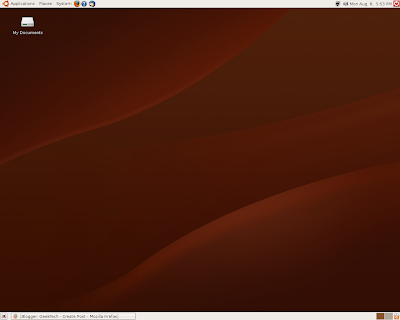 You should be able to click to enlarge.
2. Linux is so much faster than windows. It boots in no time at all
3. Linux is simpler. Simple as that
4. Linux can do just about everything windows can and it can even open all windows files and modify them plus even more file formats!
5.Linux leaves no hastle behind. You know in windows where it slows down and you can't figure out why, so you defrag and do a disk cleanup and sweep your registry and dump your temp files and check you cookies and all that junk? With Linux, you don't have to do any of that stuff. There's no headache whatsoever!!!
6. It has cooler applications than windows does. The add/remove programs assistant (not wizard) actually display hundreds of available applications. Select the ones you want and click apply. It then downloads them from the internet for you and installs.
7. Most things like configurations and the tough stuff is automatically done for you.
8. Everything is absolutely FREE!!!!! The copyright falls under GNU GPL meaning it is free for you to use, modify, tweak, copy, give away, redistribute, or sell. Some applications for Ubuntu are only free if you use it for personal use. These programs usually alert you if it is the case. All software is Open Source allowing you to download the code and modify as you please. Nice huh?
1. Some programs will stop responding after they start up. This is usually when you do something to aggravate it.
2. Installations are confusing as trying to do a Beijing Times crossword puzzle.
I still cannot figure out how to install anything. The problem is that Linux does not have executable installation files. Everything is done by commands in the terminal. So it is very confusing when trying to run a setup. (I'm going to make a point about this later).
3. Sometimes the system lags - it doesn't freeze, it just lags considerably. I don't know why this is. I just think that my old hard drive is being stupid.
4. I cannot write files to my other hard drive. To install Linux, I used a separate hard drive (slave 0) to keep from screwing up windows in case I really need it for something (like video editing and etc.). Linux says that I do not have the rights to save data on the windows hard drive. There is some sort of script that will give you the permissions but I'll have to ask my friend what it's called.
5. Linux does not support my audio card... I do have integrated that works perfectly but I also have a professional audio card from E-MU that will not work.
Things I do like about the new OS:
1. The UI. Here's what I was talking about back in number two. The common misconception is that Linux is only a command prompt. WRONG! There is a whole User Interface that comes with each distro. Ubuntu has one that is like windows but definitely different at the same time. It has two "task bars". The one on the bottom contains all the open panes (just like the windows task bar). The bar at the top (the panel) contains your Applications, Places, and System menus as well as you quick launch panel, running processes, and your date and time. Here's a screen shot:
 You should be able to click to enlarge.
2. Linux is so much faster than windows. It boots in no time at all
3. Linux is simpler. Simple as that
4. Linux can do just about everything windows can and it can even open all windows files and modify them plus even more file formats!
5.Linux leaves no hastle behind. You know in windows where it slows down and you can't figure out why, so you defrag and do a disk cleanup and sweep your registry and dump your temp files and check you cookies and all that junk? With Linux, you don't have to do any of that stuff. There's no headache whatsoever!!!
6. It has cooler applications than windows does. The add/remove programs assistant (not wizard) actually display hundreds of available applications. Select the ones you want and click apply. It then downloads them from the internet for you and installs.
7. Most things like configurations and the tough stuff is automatically done for you.
8. Everything is absolutely FREE!!!!! The copyright falls under GNU GPL meaning it is free for you to use, modify, tweak, copy, give away, redistribute, or sell. Some applications for Ubuntu are only free if you use it for personal use. These programs usually alert you if it is the case. All software is Open Source allowing you to download the code and modify as you please. Nice huh?
Sunday, July 15, 2007
Windows XP is out to get it's users.
You'd be surprised to know that Windows XP wants your machine to suffer. Really, I'm not lying. Just ask my computer. Of course I always have to use system restore atleast once a day for as much modifying as I do, but here's a couple tips that will REALLY help DEFEAT your evil operating system.
Step one - XP is stupid. So let's give it some brains - I mean memory.
(only perform these actions if you have 256 MB of RAM or more)
(be sure to create a system restore point and back up your registry before continuing - don't worry though, these tweaks are absolutely safe. You will not lose any files whatsoever.)
1. Go to Start > Run then type " regedit ". (you may need to be the computer's administrator in order to make changes to the Registry.
2. Find the following key: HKEY_LOCAL_MACHINE\System\CurrentControlSet\Control\ SessionManager\Memory Management
3. Find " DisablePagingExecutive " and double click on it. Change the value to 1.
- This instructs the OS to keep program data in RAM for as long as possible enabling faster program responses
4. Find " LargeSystemCache " and double click on it. Set the value to 1.
- This makes the OS "Shadow ROM" or load the OS into RAM for faster load times and system responses.
5. Now right click in the white space under the list of keys and follow Create new > DWORD called "IOPageLockLimit" (without quotes), and set it to a value of "40000" if you have 512 MB or more. In case if you have 256 MB, set it as "10000". Remember that these should be HEX numbers. This particular tweak will speed up your disk cache.
6. Under the Memory management folder on the left, you will find a folder called PrefetchParameters. Click on this folder. On the right pane, you will find a key called "EnablePrefetcher". Set this value to "3".
All these tweaks put together should extract a significant amount of performance from your installation of Windows XP. I didn't perform all of these but I did post them in case you wanted to. The first time I read this I thought that using more RAM would actually slow the system but it is really helping my speeds.
***All information found in this tweak was taken from www.santa-reviews.blogspot.com***
Step two: XP is ugly so let's give it a make over - or new themes rather
(Be sure to create another system restore point just in case - again, this is safe!)
(if you do not have System Restore, you can download GoBack for free which does the exact same thing. Take care of that now!)
1. Go to www.wincustomize.com and look through some pretty cool themes, wallpapers, and screen savers.
1. Also you may want to check out www.Deviantart.com for free themes (this is where I get all my really sweet ones).
2. In order to use them however, you must replace one system file.
Here is a download link for a free utility to do all the work for you. Just run once and reboot. You will see no difference whatsoever after boot but the file is still changed. This does not harm your OS nor cause system instability/crashing/hooking.
3. Got a theme? Download it and unzip it if necessary. ***IMPORTANT*** When you apply this theme it becomes a system file. The theme file and containing folders should and cannot be modified at all. Save the theme somewhere on your computer (it actually does not matter where just don't forget because you need to know the path).
4. Double click on the .THEME file and your Window's Appearance Panel should open with the theme applied in the preview box. Some themes have multiple color profiles so be sure to check that drop down box. When the preview box is displaying a theme that you find satisfactory click Apply and then OK. XP will now display a message saying "Please Wait".
***You computer screen will then fade to black and white. This is NORMAL. This may also take sometime depending upon the speed of your processor and how good your specs are. This is also NORMAL. (mine usually takes a good thirty seconds or so.)
Your theme should now be applied. ***You may notice a slightly lower standard in system performance. Adding different visual effects causes delays in graphical rendering and thus uses more CPU processing.
Here's a screen shot of the theme that I am currently using. It is called Vistab2 and I download from deviantart.com:
 ***Click to enlarge***
5. Want different icons? You can find different shell32.dll files and installers to change your icons to new Vista, Mac, or any themed styles. Just search on google for icon installers. (wincustomize.com should have theme)
***That not working for you? Create your own! Simply open Paint and click on Image > Attributes. Set the Height and Width to 32 PIXELS (not inches) Then PAINT! When you are finished, click File > Save As. The file type must be a BMP (bitmap) but the filename can be whatever you want AS LONG AS it ends in " .ico " Again, this will be a system file if it is used, so save it in a place where it will not be modified, nor it's containing folders. To use that icon, click on the existing icon that you want to change. Go to Properties. Then click the Customize tab. Click "Change Icon" near the bottom and change the path to that of where your icon is saved. If you saved it correctly, it will be recognized and you may use it.
Step Three: XP is fat so lets get rid of some weight that's slowing it down - I mean the "Garbage"
There are two programs that I just adore: "Advanced Disk Cleaner" and "CCleaner"
1. Download Advanced Disk Cleaner. Simply install and run. In order to get your serial number, you must register. It is absolutely FREE. I mean it. I ordered my own serial number and I didn't pay one cent for it! You'd be surprised how much junk is on your computer. This will really help. Unfortunately, this will only scan for temporary files. ***NOT TEMPORARY INTERNET FILES*** The files it removes are from the temp directory. These are application files that are no longer necessary to have and are safe to remove. See #2...
2. Download CCleaner. Again, install and run. This requires no registration and of course it is still Freeware. I think I love this program better! The first time I used this, it removed so many useless files it wasn't even funny. The total scan time lasted only 106 seconds. It removed 1,716 MB of cookies, temp files, web browsing history, you name it!
Step Four: XP is a poor secretary - Let's fix the filing cabinet and it's list of operations.
The registry is probably the most important thing in your OS. Here, a list of instructions of every piece of code it kept. This instructs how the system should run and behave. When it gets jam packed with useless files, your computer slows down because it takes up room in the filing cabinet. Here's a piece of Freeware to help the system along.
***Products that require purchase do a better job than anything but this is the highest rated freeware registry cleaner according to CNET.***
1. Download Registry Defrag. Install and run. This will really speed your performance.
I don't recommend themeing XP but it can be done and is very cool to do so. The only reason why I don't recommend it is because it usually slows down your system just a little. But if you are only using a computer to check email and the news then it will not hurt your machine at all. I hope you find these tips helpful. Leave comments including your email address if you have any questions. I have comment moderation enabled so no one will see your comments or email addresses. I will not post them if they contain your contact info.
Step one - XP is stupid. So let's give it some brains - I mean memory.
(only perform these actions if you have 256 MB of RAM or more)
(be sure to create a system restore point and back up your registry before continuing - don't worry though, these tweaks are absolutely safe. You will not lose any files whatsoever.)
1. Go to Start > Run then type " regedit ". (you may need to be the computer's administrator in order to make changes to the Registry.
2. Find the following key: HKEY_LOCAL_MACHINE\System\CurrentControlSet\Control\ SessionManager\Memory Management
3. Find " DisablePagingExecutive " and double click on it. Change the value to 1.
- This instructs the OS to keep program data in RAM for as long as possible enabling faster program responses
4. Find " LargeSystemCache " and double click on it. Set the value to 1.
- This makes the OS "Shadow ROM" or load the OS into RAM for faster load times and system responses.
5. Now right click in the white space under the list of keys and follow Create new > DWORD called "IOPageLockLimit" (without quotes), and set it to a value of "40000" if you have 512 MB or more. In case if you have 256 MB, set it as "10000". Remember that these should be HEX numbers. This particular tweak will speed up your disk cache.
6. Under the Memory management folder on the left, you will find a folder called PrefetchParameters. Click on this folder. On the right pane, you will find a key called "EnablePrefetcher". Set this value to "3".
All these tweaks put together should extract a significant amount of performance from your installation of Windows XP. I didn't perform all of these but I did post them in case you wanted to. The first time I read this I thought that using more RAM would actually slow the system but it is really helping my speeds.
***All information found in this tweak was taken from www.santa-reviews.blogspot.com***
Step two: XP is ugly so let's give it a make over - or new themes rather
(Be sure to create another system restore point just in case - again, this is safe!)
(if you do not have System Restore, you can download GoBack for free which does the exact same thing. Take care of that now!)
1. Go to www.wincustomize.com and look through some pretty cool themes, wallpapers, and screen savers.
1. Also you may want to check out www.Deviantart.com for free themes (this is where I get all my really sweet ones).
2. In order to use them however, you must replace one system file.
Here is a download link for a free utility to do all the work for you. Just run once and reboot. You will see no difference whatsoever after boot but the file is still changed. This does not harm your OS nor cause system instability/crashing/hooking.
UXTheme_Multi_Patcher_4.0.zip(Just download and unzip and run) To return the file back to normal just run this again. You will not be able to use your themes again after that.
3. Got a theme? Download it and unzip it if necessary. ***IMPORTANT*** When you apply this theme it becomes a system file. The theme file and containing folders should and cannot be modified at all. Save the theme somewhere on your computer (it actually does not matter where just don't forget because you need to know the path).
4. Double click on the .THEME file and your Window's Appearance Panel should open with the theme applied in the preview box. Some themes have multiple color profiles so be sure to check that drop down box. When the preview box is displaying a theme that you find satisfactory click Apply and then OK. XP will now display a message saying "Please Wait".
***You computer screen will then fade to black and white. This is NORMAL. This may also take sometime depending upon the speed of your processor and how good your specs are. This is also NORMAL. (mine usually takes a good thirty seconds or so.)
Your theme should now be applied. ***You may notice a slightly lower standard in system performance. Adding different visual effects causes delays in graphical rendering and thus uses more CPU processing.
Here's a screen shot of the theme that I am currently using. It is called Vistab2 and I download from deviantart.com:
 ***Click to enlarge***
5. Want different icons? You can find different shell32.dll files and installers to change your icons to new Vista, Mac, or any themed styles. Just search on google for icon installers. (wincustomize.com should have theme)
***That not working for you? Create your own! Simply open Paint and click on Image > Attributes. Set the Height and Width to 32 PIXELS (not inches) Then PAINT! When you are finished, click File > Save As. The file type must be a BMP (bitmap) but the filename can be whatever you want AS LONG AS it ends in " .ico " Again, this will be a system file if it is used, so save it in a place where it will not be modified, nor it's containing folders. To use that icon, click on the existing icon that you want to change. Go to Properties. Then click the Customize tab. Click "Change Icon" near the bottom and change the path to that of where your icon is saved. If you saved it correctly, it will be recognized and you may use it.
Step Three: XP is fat so lets get rid of some weight that's slowing it down - I mean the "Garbage"
There are two programs that I just adore: "Advanced Disk Cleaner" and "CCleaner"
1. Download Advanced Disk Cleaner. Simply install and run. In order to get your serial number, you must register. It is absolutely FREE. I mean it. I ordered my own serial number and I didn't pay one cent for it! You'd be surprised how much junk is on your computer. This will really help. Unfortunately, this will only scan for temporary files. ***NOT TEMPORARY INTERNET FILES*** The files it removes are from the temp directory. These are application files that are no longer necessary to have and are safe to remove. See #2...
2. Download CCleaner. Again, install and run. This requires no registration and of course it is still Freeware. I think I love this program better! The first time I used this, it removed so many useless files it wasn't even funny. The total scan time lasted only 106 seconds. It removed 1,716 MB of cookies, temp files, web browsing history, you name it!
Step Four: XP is a poor secretary - Let's fix the filing cabinet and it's list of operations.
The registry is probably the most important thing in your OS. Here, a list of instructions of every piece of code it kept. This instructs how the system should run and behave. When it gets jam packed with useless files, your computer slows down because it takes up room in the filing cabinet. Here's a piece of Freeware to help the system along.
***Products that require purchase do a better job than anything but this is the highest rated freeware registry cleaner according to CNET.***
1. Download Registry Defrag. Install and run. This will really speed your performance.
I don't recommend themeing XP but it can be done and is very cool to do so. The only reason why I don't recommend it is because it usually slows down your system just a little. But if you are only using a computer to check email and the news then it will not hurt your machine at all. I hope you find these tips helpful. Leave comments including your email address if you have any questions. I have comment moderation enabled so no one will see your comments or email addresses. I will not post them if they contain your contact info.
Thursday, July 12, 2007
I FIXED IT!
Now I see why everything was messed up...
There was a problem with Tweaking Toolbox XP. Whenever I would run it, it would still say that I had 30 days left. Well since I've been trying so many times to restore the system to an earlier point, it wasn't working. I tried one last restore point - one that TTXP and made. IT WORKED! So I was able to go back into TTXP and change all the settings back to "normal" - or as close as normal as I could get it. So now the floating windows don't activate themselves and I don't get annoyed as easily. My computer seems to be running better too!
I tried uninstalling TTXP as well as another program and it said that the uninstallation files could not be found. UHOH. So what do you do? You go into your program files folder and delete all the files TAHT'S WHAT YOU DO!. So I did. Well now there's still fragments everywhere in your registry. Registry Mechanic to the RESCUE!!! It found 156 errors. I love this piece of software. It fixed them all and now I hope that my computer will not blow up the next time I boot.
I still have no idea how my computer became a Beta tester. Which reminds me...
I found a free decompiler! This actually allows you to import any sort of system file and change the script to whatever you want and then recompile and save it! I originally downloaded it because I had insturctions of how to change the "start" button. It allowed you to make it say whatever you want by modifying the 1033 file string in folder 38 of explorer.exe. I ended up getting an error message when I tried to save. Poo...
I'd put the link on here but i'm busy with some other things. I will leave you with this however...
http://santa-reviews.blogspot.com/
Here's a blog with tons of stuff that I even used! Check out the "Labels" section at right in order to filter by subject. I modified my registry to help windows run better. So far it is really helping. And for all the computer trouble I've been having... don't worry, I created a system restore point and made a new copy of my registry. All should be good. Prepare for a crash landing.....
There was a problem with Tweaking Toolbox XP. Whenever I would run it, it would still say that I had 30 days left. Well since I've been trying so many times to restore the system to an earlier point, it wasn't working. I tried one last restore point - one that TTXP and made. IT WORKED! So I was able to go back into TTXP and change all the settings back to "normal" - or as close as normal as I could get it. So now the floating windows don't activate themselves and I don't get annoyed as easily. My computer seems to be running better too!
I tried uninstalling TTXP as well as another program and it said that the uninstallation files could not be found. UHOH. So what do you do? You go into your program files folder and delete all the files TAHT'S WHAT YOU DO!. So I did. Well now there's still fragments everywhere in your registry. Registry Mechanic to the RESCUE!!! It found 156 errors. I love this piece of software. It fixed them all and now I hope that my computer will not blow up the next time I boot.
I still have no idea how my computer became a Beta tester. Which reminds me...
I found a free decompiler! This actually allows you to import any sort of system file and change the script to whatever you want and then recompile and save it! I originally downloaded it because I had insturctions of how to change the "start" button. It allowed you to make it say whatever you want by modifying the 1033 file string in folder 38 of explorer.exe. I ended up getting an error message when I tried to save. Poo...
I'd put the link on here but i'm busy with some other things. I will leave you with this however...
http://santa-reviews.blogspot.com/
Here's a blog with tons of stuff that I even used! Check out the "Labels" section at right in order to filter by subject. I modified my registry to help windows run better. So far it is really helping. And for all the computer trouble I've been having... don't worry, I created a system restore point and made a new copy of my registry. All should be good. Prepare for a crash landing.....
Labels: Modifications, Software, tips
I'm back now...
I realize it has been awhile but my life does not revolve around geeky things all the time. I got back from a trip not too long ago so that explains why I've been out for some time. I added something cool on the side ------->
This is kind of my message board/forum or shout out board. I would ask that you atleast put your blogger name, nick name, or other sort of ID instead of posting anonymous. Thanks.
Now anyway, I found this really cool thing on wincustomize.com. It is called Tweak Toolbox XP. This program lets you modify every aspect of your computer. One thing that I have set up is if I mouse over an inactive window, it will activate by itself and rise to focus. I also put a delay on it so it waits 350 milliseconds before activating. The bad part is it's kind of annoying after awhile. I was going to disable it when Tweak Toolbox would not start up. It's says that the trail is over (by the way it is shareware so you only get a 30 day trial) when I only installed it on Tuesday. I tried rolling back to a previous restore point and it my computer said it couldn't. I wouldn't be surprised if I end up reformatting my computer again.
At least if I do reformat, I thought ahead this time... When you reformat, it only touches the operating system drive which is C:. So I used Partition Magic to split C: into C: and Z:. All my documents are saved on Z: (sized at 118 GB) and all system files and programs files are on C: (sized at 25 GB). I also have a factory created drive called D:. This is my recovery drive so when I reformat I don't have to use the discs, it is automatic from this part of the hard drive. Good thinking eMachines! Downside to this is that when I do reformat all my programs are erased. Upside is all the installation executables are in a folder on Z: where I have them backed up.
I really should have left more space on C:, however, because 25 GB is still not enough. Currently, I only have 5.32 GB left. It is partly because some programs, like RCT3 and Microsoft Works 2003 take up a lot of room. I should be fine thought because I can also start installing programs onto Z: if necessary.
I don't really want to mess around with all of this right now so I think I'll just deal with it for awhile. My older brother keeps telling me not to mess around with my computer so much. He says it is all sucking my system resources which it is. But what fun is a computer if you can't modify it to your tastes? EXACTLY!
This is kind of my message board/forum or shout out board. I would ask that you atleast put your blogger name, nick name, or other sort of ID instead of posting anonymous. Thanks.
Now anyway, I found this really cool thing on wincustomize.com. It is called Tweak Toolbox XP. This program lets you modify every aspect of your computer. One thing that I have set up is if I mouse over an inactive window, it will activate by itself and rise to focus. I also put a delay on it so it waits 350 milliseconds before activating. The bad part is it's kind of annoying after awhile. I was going to disable it when Tweak Toolbox would not start up. It's says that the trail is over (by the way it is shareware so you only get a 30 day trial) when I only installed it on Tuesday. I tried rolling back to a previous restore point and it my computer said it couldn't. I wouldn't be surprised if I end up reformatting my computer again.
At least if I do reformat, I thought ahead this time... When you reformat, it only touches the operating system drive which is C:. So I used Partition Magic to split C: into C: and Z:. All my documents are saved on Z: (sized at 118 GB) and all system files and programs files are on C: (sized at 25 GB). I also have a factory created drive called D:. This is my recovery drive so when I reformat I don't have to use the discs, it is automatic from this part of the hard drive. Good thinking eMachines! Downside to this is that when I do reformat all my programs are erased. Upside is all the installation executables are in a folder on Z: where I have them backed up.
I really should have left more space on C:, however, because 25 GB is still not enough. Currently, I only have 5.32 GB left. It is partly because some programs, like RCT3 and Microsoft Works 2003 take up a lot of room. I should be fine thought because I can also start installing programs onto Z: if necessary.
I don't really want to mess around with all of this right now so I think I'll just deal with it for awhile. My older brother keeps telling me not to mess around with my computer so much. He says it is all sucking my system resources which it is. But what fun is a computer if you can't modify it to your tastes? EXACTLY!
