GeekTech
Monday, April 6, 2009
RUN Prompt: Launch any application FAST!
If you are like me and are becoming more and more obsessed by doing every single task on your computer with your keyboard instead of your mouse, then I just thought up and tested the best thing for you.
Ever noticed those little underlines under certain letters in menus? If you didn't know, those are the keyboard commands to navigate an entire program with out using the mouse. In each program, no two menu options use the same letter, or at least they try not to. In case it does, the highlighter will flip back and forth between the options as you press that letter. If you've never experienced this awesome thing before, go ahead and hit ALT + F, or ALT and then F to open your browser's File menu. Don't hit X or else that will close down the program (that's usually standard).
Ok, enough of the basics. How do you get flying fast with launching applications. Well you know that in command prompt it's natural directory defaults to the system32 folder where some common programs are stored - like mspaint, sol, and notepad. When you go to Start --> Run, and you simply type "notepad" (even without the ".exe") it launches that program.
Well I prefer to quickly launch something via the keyboard rather than picking up my stylus (since I don't have a mouse) clicking to activate it's control, finding the mouse on one of my dual monitors, dragging it over the the secondary monitor to click start, etc, etc, etc, etc. So it is much faster to just type something real fast and go.
In windows, you can launch ANYTHING from the RUN prompt. But to formally do it, you have to type the complete path with colons, backslashes, and the .exe extension. So why can't you do it just like - "notepad" and have it launch? Well you can!
Go to the folder - C:\windows\system32 - and create a new text file from the file menu
Or if you're like me, press the following while doing the hokey pokey...
Windows Key + E;
TAB;
L; (if you have one hard drive)
L; (only if you have two hard drives)
Enter;
W;
Enter;
S (8 times);
Enter;
ALT + F;
ALT + W;
ALT + T;
...it really is faster to do it with key strokes.
Anywho, rename that new text file to the name of the program that you want to launch and end it with a [dot]bat extension. My example here would be Firefox.
firefox.bat
It will most likely warn you about changing the file extension and becoming unusable. It's ok, just say yes. If you want, shorten the name of that file to "ff.bat" so you can reduce the amount of keys you have to type to launch your program. It's your file, you do whatever you want.
Now right click that file (or hit the context menu key on the keyboard and then hit "E") which will open a blank notepad.
HERE'S THE IMPORTANT PART!!!!
Inside of notepad typ the following:
start "" [path]
That is "s-t-a-r-t SPACE doublequote-doublequote SPACE [path]
Now [path] should be replaced with the complete path to wherever your program is installed including the drive letter and file extension AND the whole path must be in double quotes! Obviously, the batch file should not contain the brackets.
Example: (still for firefox)
start "" "C:\program files\mozilla firefox 3 beta 2\firefox.exe"
(s-t-a-r-t SPACE doublequote-doublequote SPACE doublequote-c-COLON...........)
Save the file once you've added this one line and then close notepad. Type the following (in no program)...
Windows Key (the flag) + R (hit them at the same time);
type "firefox";
hit Enter;
Voila! A new instance of Firefox should open. I even have these set to Thunderbird, Audacity, Photoshop, Premiere, and VMware. It works!
Ever noticed those little underlines under certain letters in menus? If you didn't know, those are the keyboard commands to navigate an entire program with out using the mouse. In each program, no two menu options use the same letter, or at least they try not to. In case it does, the highlighter will flip back and forth between the options as you press that letter. If you've never experienced this awesome thing before, go ahead and hit ALT + F, or ALT and then F to open your browser's File menu. Don't hit X or else that will close down the program (that's usually standard).
Ok, enough of the basics. How do you get flying fast with launching applications. Well you know that in command prompt it's natural directory defaults to the system32 folder where some common programs are stored - like mspaint, sol, and notepad. When you go to Start --> Run, and you simply type "notepad" (even without the ".exe") it launches that program.
Well I prefer to quickly launch something via the keyboard rather than picking up my stylus (since I don't have a mouse) clicking to activate it's control, finding the mouse on one of my dual monitors, dragging it over the the secondary monitor to click start, etc, etc, etc, etc. So it is much faster to just type something real fast and go.
In windows, you can launch ANYTHING from the RUN prompt. But to formally do it, you have to type the complete path with colons, backslashes, and the .exe extension. So why can't you do it just like - "notepad" and have it launch? Well you can!
Go to the folder - C:\windows\system32 - and create a new text file from the file menu
Or if you're like me, press the following while doing the hokey pokey...
Windows Key + E;
TAB;
L; (if you have one hard drive)
L; (only if you have two hard drives)
Enter;
W;
Enter;
S (8 times);
Enter;
ALT + F;
ALT + W;
ALT + T;
...it really is faster to do it with key strokes.
Anywho, rename that new text file to the name of the program that you want to launch and end it with a [dot]bat extension. My example here would be Firefox.
firefox.bat
It will most likely warn you about changing the file extension and becoming unusable. It's ok, just say yes. If you want, shorten the name of that file to "ff.bat" so you can reduce the amount of keys you have to type to launch your program. It's your file, you do whatever you want.
Now right click that file (or hit the context menu key on the keyboard and then hit "E") which will open a blank notepad.
HERE'S THE IMPORTANT PART!!!!
Inside of notepad typ the following:
start "" [path]
That is "s-t-a-r-t SPACE doublequote-doublequote SPACE [path]
Now [path] should be replaced with the complete path to wherever your program is installed including the drive letter and file extension AND the whole path must be in double quotes! Obviously, the batch file should not contain the brackets.
Example: (still for firefox)
start "" "C:\program files\mozilla firefox 3 beta 2\firefox.exe"
(s-t-a-r-t SPACE doublequote-doublequote SPACE doublequote-c-COLON...........)
Save the file once you've added this one line and then close notepad. Type the following (in no program)...
Windows Key (the flag) + R (hit them at the same time);
type "firefox";
hit Enter;
Voila! A new instance of Firefox should open. I even have these set to Thunderbird, Audacity, Photoshop, Premiere, and VMware. It works!
Labels: FYI, Modifications, OS, Programming, secrets, Software, tips


Wednesday, January 28, 2009
Windows: Access Command Prompt Easily
Sometimes when doing large batch conversions between file types, the old ones are left over. You want to delete them but they are interlaced with their counter parts and you don't want to individually select them all. What do you do?
I use command prompt to do this. Go to the directory containing the files that you want deleted and use the command DEL *.[old file extension]. So say I converted a bunch of WAV files to MP3. I would just type DEL *.wav and leave the MP3's alone.
Ok, that's not that hard to do right? Of course any geek knows how to delete files of a certain type in command prompt. But say your music folder is 5,000 folders deep on your harddrive and using the CD command to change to the directory is a huge pain in the butt. Well here's an easy way to make command prompt go straight to the directory you want.
How it works
Go to any folder (in explorer) that you would want to work with in command prompt. Right click on a subfolder and then you select "Command Prompt from Here". This will open Command prompt pointing to the directory you want.
OK, that's the desired effect and it is a feature that comes built into XP but it is rarely ever enabled. So if you want this ease of access to prompt, follow these steps
How to activate the feature
Again, in explorer, go to any folder (it really does not matter where) and click Tools menu>Folder Options.
Click the File Types tab
In the giant list, find "Folder" and select it (Make sure it isn't "File Folder")
Click the Advanced button on the bottom of the window
***FOR THE LOVE OF EVERYTHING!! - do NOT set anything as default or else you will end up launching VLC media LAN every time you double click a folder. It just happened to me and I couldn't fix it (had to use system restore)
Click on New...
Under the Action box, type "Command Prompt from Here"
Under the "Application used to perform the action" type cmd.exe "%1" (with quotes and everything)
Click ok a few times and there you have it.
In case you screw anything up, visit the link below to get a free context menu editor.
http://www.freedownloadmanager.org/downloads/Fast_Explorer_47727_p/free.htm
I use command prompt to do this. Go to the directory containing the files that you want deleted and use the command DEL *.[old file extension]. So say I converted a bunch of WAV files to MP3. I would just type DEL *.wav and leave the MP3's alone.
Ok, that's not that hard to do right? Of course any geek knows how to delete files of a certain type in command prompt. But say your music folder is 5,000 folders deep on your harddrive and using the CD command to change to the directory is a huge pain in the butt. Well here's an easy way to make command prompt go straight to the directory you want.
How it works
Go to any folder (in explorer) that you would want to work with in command prompt. Right click on a subfolder and then you select "Command Prompt from Here". This will open Command prompt pointing to the directory you want.
OK, that's the desired effect and it is a feature that comes built into XP but it is rarely ever enabled. So if you want this ease of access to prompt, follow these steps
How to activate the feature
Again, in explorer, go to any folder (it really does not matter where) and click Tools menu>Folder Options.
Click the File Types tab
In the giant list, find "Folder" and select it (Make sure it isn't "File Folder")
Click the Advanced button on the bottom of the window
***FOR THE LOVE OF EVERYTHING!! - do NOT set anything as default or else you will end up launching VLC media LAN every time you double click a folder. It just happened to me and I couldn't fix it (had to use system restore)
Click on New...
Under the Action box, type "Command Prompt from Here"
Under the "Application used to perform the action" type cmd.exe "%1" (with quotes and everything)
Click ok a few times and there you have it.
In case you screw anything up, visit the link below to get a free context menu editor.
http://www.freedownloadmanager.org/downloads/Fast_Explorer_47727_p/free.htm
Labels: Modifications, OS, secrets, tips
Saturday, July 19, 2008
Vista: I finally cracked it to OS X
Not to copy off of Mr. Mssuxandotherstuff here but I really wanted to show you all some cool things that I just discovered with theming. So here's my current desktop's screencap.
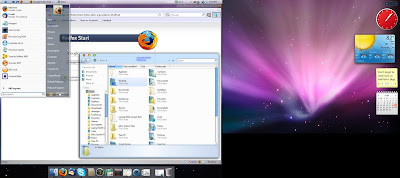
Now we've all seen themes before and just having Mac wallpaper isn't that impressive, but look closely at the title bar. Yes, that's it... lean in and look!
Wait... what's that?
YES! The buttons are really on the left side. IN WINDOWS!!! I found this awesome stand alone, non-install program called leftsider that is completely free. It only works in windows vista though. I've heard that it can work in xp but will only affect explorer windows. In vista, though, everything is switched. Combine it with a theme, some wallpaper, and RKLauncher and you have a suitable mac on pc.

Now we've all seen themes before and just having Mac wallpaper isn't that impressive, but look closely at the title bar. Yes, that's it... lean in and look!
Wait... what's that?
YES! The buttons are really on the left side. IN WINDOWS!!! I found this awesome stand alone, non-install program called leftsider that is completely free. It only works in windows vista though. I've heard that it can work in xp but will only affect explorer windows. In vista, though, everything is switched. Combine it with a theme, some wallpaper, and RKLauncher and you have a suitable mac on pc.
Labels: A Geek's Dream, Modifications, OS, secrets, Software
Monday, June 23, 2008
Firefox 3: Kill AOL Search
Do you all remember that lovely little thing that firefox 2 did whenever it couldn't find what you entered in the URL address line? It would always bring up the google search page with your query. Well Firefox 3 had to be dumb and make it search gay-o-l instead. The results were always horrible and you had to physically type google.com just to find what you were looking for. Well I finally cracked the secret on how to change firefox 3 to use google instead of AOL. :o)
Step 1: Start a new tab (or window) CRT + T
Step 2: type "about:config" in the URL line and accept the warning message. (don't worry, this is safe)
Step 3: In the search bar at the top of the page, type "search"
Step 4: Look for an entry titled "browser.search.selectedEngine" and change this value to "Google Search" (Right click on the line and select Modify)
Step 5: At the bottom of the listed entries, right click on the last entry titled "keyword.url". If you look at the right of the line, it will give a URL of the aol search. Right click the entry and select "Modify".
Step 6: Change the URL to the following: "http://www.google.com/search?hl=en&q="
***Note: It is important that you use the exact phrases above, especially the one for the google url. If you simply type google.com it will end up looking for "google.com+(Your+Search+Phrase)"
Changes take effect immediately and it works marvelously. In case you didn't know, you can enter anything you want in Firefox's URL address line. If it cannot find a website for it, it will bring back the google search results. This saves time because you do not have to go to google.com or firefox's homepage.
Step 1: Start a new tab (or window) CRT + T
Step 2: type "about:config" in the URL line and accept the warning message. (don't worry, this is safe)
Step 3: In the search bar at the top of the page, type "search"
Step 4: Look for an entry titled "browser.search.selectedEngine" and change this value to "Google Search" (Right click on the line and select Modify)
Step 5: At the bottom of the listed entries, right click on the last entry titled "keyword.url". If you look at the right of the line, it will give a URL of the aol search. Right click the entry and select "Modify".
Step 6: Change the URL to the following: "http://www.google.com/search?hl=en&q="
***Note: It is important that you use the exact phrases above, especially the one for the google url. If you simply type google.com it will end up looking for "google.com+(Your+Search+Phrase)"
Changes take effect immediately and it works marvelously. In case you didn't know, you can enter anything you want in Firefox's URL address line. If it cannot find a website for it, it will bring back the google search results. This saves time because you do not have to go to google.com or firefox's homepage.
Labels: FYI, Modifications, secrets, tips
Saturday, December 29, 2007
Geekmas - The Geek at Christmas
Now that I'm getting older, my parents can't buy me toys for Christmas any longer. And now that I'm into tech stuff, everything is now more expensive. I asked for a gig of RAM and a nice speaker set for xmas but my dad was afraid to get into all that so they didn't bother. I didn't really care. I did really want the gig of RAM though. My older brother did give me a KVM cable that is great for connection input/output stuff to a pc for quick disconnection. I also got his fiance's old LCD.
After Christmas, I was looking at TigerDirect when I found a gig stick (DDR PC3200) for $41. "This is a miracle," I said to myself as I clicked 'Add to Cart'. I also wanted some nice speakers because my audio is all poppy and junky so I thought I should get an upgrade. Well, I've been also contemplating the idea of getting a video card as well for dual monitors. I found a 256MB PCI-Ex card for $29. Without giving a second thought, I added it to my cart.
It all came yesterday and I installed it all as fast as I could. Everything works perfect and I love the dual monitors. And the gig of RAM helped out a lot. And plus there was something that I've been wanting to use that for as well. Which brings me to my next post............
After Christmas, I was looking at TigerDirect when I found a gig stick (DDR PC3200) for $41. "This is a miracle," I said to myself as I clicked 'Add to Cart'. I also wanted some nice speakers because my audio is all poppy and junky so I thought I should get an upgrade. Well, I've been also contemplating the idea of getting a video card as well for dual monitors. I found a 256MB PCI-Ex card for $29. Without giving a second thought, I added it to my cart.
It all came yesterday and I installed it all as fast as I could. Everything works perfect and I love the dual monitors. And the gig of RAM helped out a lot. And plus there was something that I've been wanting to use that for as well. Which brings me to my next post............
Labels: Modifications
Saturday, December 8, 2007
How many cores can your PC handle?
Found a very interesting article and thought I would share.
http://www.pcworld.com/article/id,140425-c,chips/article.html
http://www.pcworld.com/article/id,140425-c,chips/article.html
Labels: Engineering, Modifications, secrets
Thursday, July 12, 2007
I FIXED IT!
Now I see why everything was messed up...
There was a problem with Tweaking Toolbox XP. Whenever I would run it, it would still say that I had 30 days left. Well since I've been trying so many times to restore the system to an earlier point, it wasn't working. I tried one last restore point - one that TTXP and made. IT WORKED! So I was able to go back into TTXP and change all the settings back to "normal" - or as close as normal as I could get it. So now the floating windows don't activate themselves and I don't get annoyed as easily. My computer seems to be running better too!
I tried uninstalling TTXP as well as another program and it said that the uninstallation files could not be found. UHOH. So what do you do? You go into your program files folder and delete all the files TAHT'S WHAT YOU DO!. So I did. Well now there's still fragments everywhere in your registry. Registry Mechanic to the RESCUE!!! It found 156 errors. I love this piece of software. It fixed them all and now I hope that my computer will not blow up the next time I boot.
I still have no idea how my computer became a Beta tester. Which reminds me...
I found a free decompiler! This actually allows you to import any sort of system file and change the script to whatever you want and then recompile and save it! I originally downloaded it because I had insturctions of how to change the "start" button. It allowed you to make it say whatever you want by modifying the 1033 file string in folder 38 of explorer.exe. I ended up getting an error message when I tried to save. Poo...
I'd put the link on here but i'm busy with some other things. I will leave you with this however...
http://santa-reviews.blogspot.com/
Here's a blog with tons of stuff that I even used! Check out the "Labels" section at right in order to filter by subject. I modified my registry to help windows run better. So far it is really helping. And for all the computer trouble I've been having... don't worry, I created a system restore point and made a new copy of my registry. All should be good. Prepare for a crash landing.....
There was a problem with Tweaking Toolbox XP. Whenever I would run it, it would still say that I had 30 days left. Well since I've been trying so many times to restore the system to an earlier point, it wasn't working. I tried one last restore point - one that TTXP and made. IT WORKED! So I was able to go back into TTXP and change all the settings back to "normal" - or as close as normal as I could get it. So now the floating windows don't activate themselves and I don't get annoyed as easily. My computer seems to be running better too!
I tried uninstalling TTXP as well as another program and it said that the uninstallation files could not be found. UHOH. So what do you do? You go into your program files folder and delete all the files TAHT'S WHAT YOU DO!. So I did. Well now there's still fragments everywhere in your registry. Registry Mechanic to the RESCUE!!! It found 156 errors. I love this piece of software. It fixed them all and now I hope that my computer will not blow up the next time I boot.
I still have no idea how my computer became a Beta tester. Which reminds me...
I found a free decompiler! This actually allows you to import any sort of system file and change the script to whatever you want and then recompile and save it! I originally downloaded it because I had insturctions of how to change the "start" button. It allowed you to make it say whatever you want by modifying the 1033 file string in folder 38 of explorer.exe. I ended up getting an error message when I tried to save. Poo...
I'd put the link on here but i'm busy with some other things. I will leave you with this however...
http://santa-reviews.blogspot.com/
Here's a blog with tons of stuff that I even used! Check out the "Labels" section at right in order to filter by subject. I modified my registry to help windows run better. So far it is really helping. And for all the computer trouble I've been having... don't worry, I created a system restore point and made a new copy of my registry. All should be good. Prepare for a crash landing.....
Labels: Modifications, Software, tips
